mavsdk_drone_show
MDS Simulation Server Setup Guide MDS 3
Introduction
Welcome to the MDS Simulation Server Setup Guide. This document provides a basic demonstration setup for evaluation and learning purposes.
🎯 This guide is for DEMO and EVALUATION only
For production deployments, custom features, or real hardware implementation:
- Email: p30planets@gmail.com
- LinkedIn: Alireza Ghaderi
This document provides a complete, all-in-one framework for setting up and running either:
- Decentralized Drone Shows (offline, pre-planned trajectories), and
- Live, Cooperative Swarm Missions (real-time, leader–follower clustering with dynamic role changes).
MDS 3.5 is built on the mavsdk_drone_show repository (released September 2025). It supports:
- Offline Choreography Modes: Preload “ShowMode” trajectory files (e.g., Spiral, Wave, Heart) that every drone executes in sync.
- Real-Time Swarm Mode: A clustered leader–follower architecture with smart leader-failure handling, automatic leader re-election, dynamic formation reshuffling, and per-drone role changes on the fly.
In other words, you can use the same system either to run an elaborate, pre-programmed drone-show performance or to orchestrate a live, fully decentralized cooperative mission—with failsafe checks, global setpoints, and robust startup sequences baked in. Both drone-show artists and swarm-mission engineers will find this guide relevant for taking advantage of MDS 3.5’s unified feature set.
For a step-by-step walkthrough beginning with version 0.1, see our YouTube tutorial playlist linked in the GitHub repository.
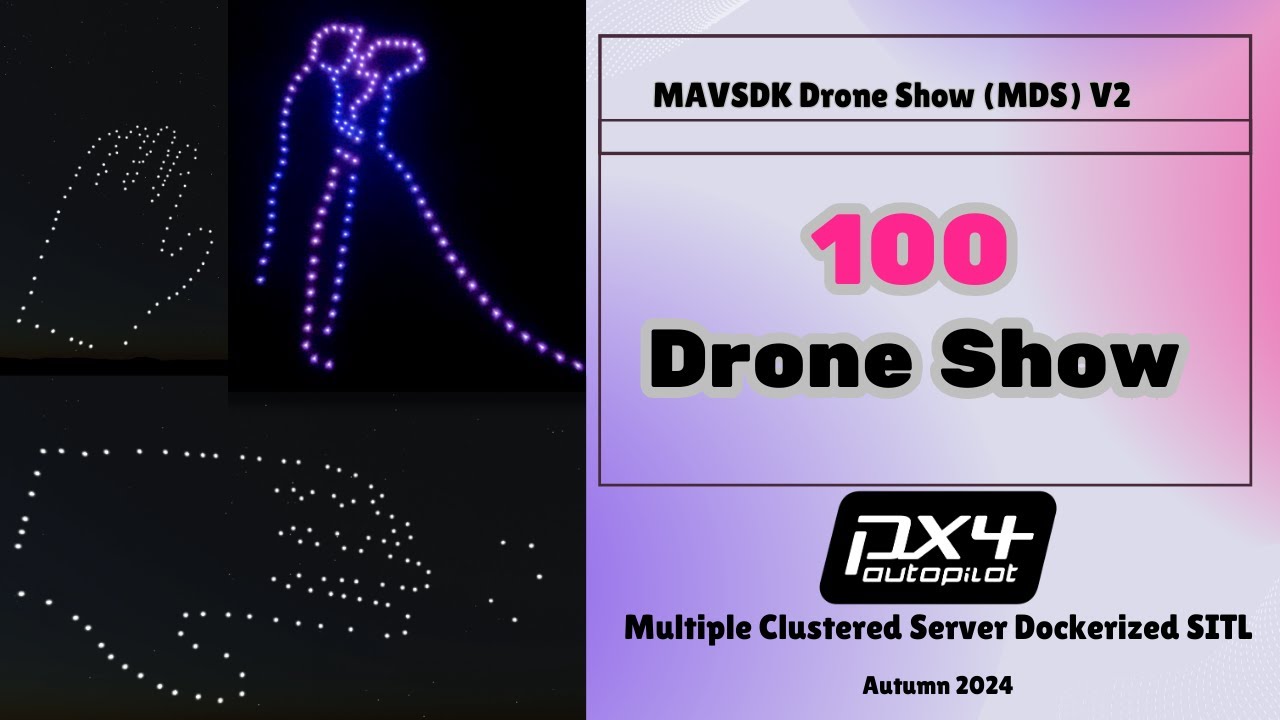
Watch the Setup Video
| Check out our detailed **100-Drone SITL Test in Clustered Cloud Servers | MDS Mavsdk Drone Show Version 2** video for a visual guide on setting up and running the simulation. |
Smart Swarm Clustered Leader–Follower Video
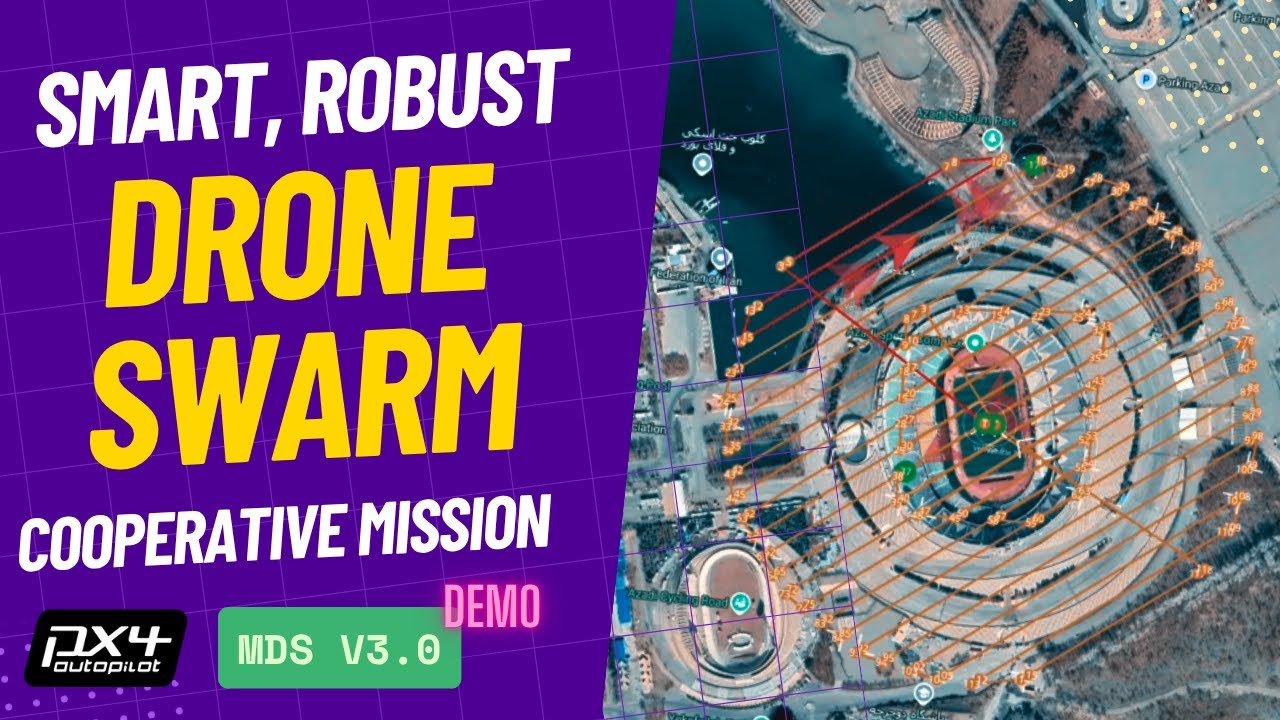
If you are interested in how cooperative missions and “Smart Swarm” mode works, check this video:
Resource Allocation
The minimum resource allocation required for running two drone instances is 2 CPU cores and 4 GB of RAM.
- For testing, start with at least 2 CPUs and 4GB RAM.
- Increase resources proportional to the number of drones being simulated.
- Each drone instance requires significant compute for SITL, so plan accordingly.
- A good starting point is 1 core and 0.5 ~ 1GB RAM per drone.
Initial Server Setup
Create a Virtual Machine (VM) based on your requirements. For example, using Linode, choose sufficient resources based on the number of drones you want to simulate.
Recommended OS: Ubuntu 234.
Pointing a Domain or Subdomain (Optional)
Although optional, it’s highly recommended to point a domain or subdomain to your drone server for ease of access and identification. You can use your existing domain or purchase a new one. If you are running on a local system, it is not needed.
Setting Up Cloudflare:
- Go to Cloudflare’s website and sign up for a free account if you don’t have one already.
- Cloudflare will serve in this project is as a DNS (Domain Name System) management service.
- After logging in, click on ‘Add a Site’ to add your domain to Cloudflare.
- Follow the on-screen instructions to verify ownership and import existing DNS settings (if applicable).
- Once the domain is added, proceed to the DNS management section.
How to Add an A Record in Cloudflare:
- Log in to your Cloudflare account if you are not already logged in.
- Navigate to the ‘DNS’ tab.
- Click on ‘Add Record’.
- Select ‘A’ in the ‘Type’ dropdown.
- Enter ‘drone’ in the ‘Name’ field to create a subdomain like
drone.yourdomain.com. - Enter your server IP address in the ‘IPv4 Address’ field.
- Ensure the ‘Proxy Status’ is set to ‘DNS Only’.
- Click ‘Save’.
Tip: If you prefer, you can also continue to use the IP address of the server or Reverse DNS URLs.
Server Configuration: Basic Setup
Access to Your Server Using SSH
ssh root@your_server_ip
Package and Software Installation
First, ensure that your system package list and Python3 pip package are up-to-date by running the following commands:
sudo apt update
sudo apt install -y python3 python3-venv python3-pip tmux lsof git
Installing Mediafire Downloader
Install the Mediafire downloader to fetch the specialized drone image:
pip3 install git+https://github.com/Juvenal-Yescas/mediafire-dl
Downloading the Custom Drone Image
In your home directory, download the latest image:
mediafire-dl
If the script failed to download automatically from Mediafire (Mediafire Limitation), open this link in your browser, start downloading the file. Then pause the download and copy the download link. Now you can use wget to download the file as a workaround.
cd ~
http://www.mediafire.com/file/b44u4fs1rytjfoh/drone-template_v3.tar
Docker Installation
Install Docker:
sudo apt install docker.io
Load the downloaded image into Docker:
docker load < drone-template_v3.
docker tag drone-template:v3.0 drone-template:latest
Image Features and Components
This custom image is a plug-and-play solution built on Ubuntu 22.04. It includes:
- PX4 1.16
- mavsdk_drone_show
- mavlink-router
- mavlink2rest
- Gazebo
- SITL workflow dependencies
- All other necessary dependencies
Moreover, it has an auto hardware ID detection and instance creation system for automated drone instance creation.
Need Custom Repository or Advanced Configuration?
The default setup works perfectly for demos and testing. For advanced users who need custom repositories or production deployments:
📖 Advanced SITL Configuration Guide - Custom repository setup with simple copy-paste commands
⚠️ Note: Advanced configuration requires good understanding of Git, Docker, and Linux. Contact p30planets@gmail.com for help.
Portainer Installation (Optional but Highly Recommended)
Install Portainer:
docker volume create portainer_data
docker run -d -p 8000:8000 -p 9443:9443 --name portainer --restart=always \
  -v /var/run/docker.sock:/var/run/docker.sock -v portainer_data:/data portainer/portainer-ce:latest
YoAccess Portainer via the browser using your domain, IP address, or the reverse DNS provided by your hosting service like Linode. e.g., https://drone.YOUR_DOMAIN.com:9443
Drone Configuration and Setup
GCS Server Setup
cd ~
git clone https://github.com/alireza787b/mavsdk_drone_show
cd mavsdk_drone_show
git checkout main-candidate
python3 -m venv venv
source venv/bin/activate
pip install -r requirements.txt
Webserver Software Installations
MDS’s swarm dashboard requires Node.js and npm. Install them by following the instructions for your operating system on the official Node.js website (version 20 using nvm is recommended). After Installing the Node.js and npm, setup your react dashboard project using following command:
cd ~/mavsdk_drone_show/app/dashboard/drone-dashboard
npm install
Now you can Run the automated webserver run script anytime you need:
bash ~/mavsdk_drone_show/app/linux_dashboard_start.sh --sitl
- If it’s your first time running the server, it will ask you to enter the webserver IP which is accessible by client. It can be your server public IP.
- To change the IP next times, either remove the
.envfile or use the--overwrite-ip "YOUR_SERVER_IP"argument.
You should now be able to access the GUI via a browser using your domain, IP, or reverse DNS (if set). E.g., http://drone.YOUR_DOMAIN.com:3000
Note: If you can’t access the page, make sure your firewall rules allow communication on ports 3000, 7070, 5000 (defined in
paramsand.env).
Mission Configuration and Customization (Optional)
You can configure your mission, swarm design, or drone show using SkyBrush or similar tools.
Remember, if you want to make any changes to these configurations, you should push those changes to your own forked GitHub repo; otherwise, none of these settings will take effect and will be overwritten (pulled) from the main MDS repo.
Certainly! Below is the updated Run Drone Instances section for your README. It is structured to cater to both novice users and advanced users who wish to deploy drones across multiple servers (VPS). The section includes clear instructions, detailed explanations, and links to additional resources for advanced configurations.
Run Drone Instances
-
SSH into Your Server:
Open a terminal and connect to your server via SSH:
ssh root@Your_Server_IP -
Navigate to the Repository Directory:
Once connected, navigate to the project directory:
cd ~/mavsdk_drone_show -
Create Drone Instances:
Use the
create_dockers.shscript to create the desired number of drone instances. Replace<number_of_instances>with the number of drones you wish to deploy.bash multiple_sitl/create_dockers.sh <number_of_instances>Example: To create 2 drone instances:
bash multiple_sitl/create_dockers.sh 2Explanation: The script
create_dockers.shinitializes Docker containers representing your simulated drones. The number “2” specifies how many drones to create. Ensure your server has sufficient resources (CPU, memory, disk space) to handle the specified number of drones. The created instances will appear in your Portainer container list, where you can manage, monitor, and remove them as needed.Hints: For debugging purposes, use the
--verboseflag to create a single drone and view detailed logs.sudo bash multiple_sitl/create_dockers.sh 1 --verbose
Advanced: Multi-Server Deployment (Optional)
For advanced users aiming to deploy drones across multiple servers (VPS) to scale up the simulation, follow these guidelines:
Each server should operate within a distinct Docker network subnet to prevent IP conflicts. By default, the script uses 172.18.0.0/24. Subsequent servers can utilize 172.19.0.0/24, 172.20.0.0/24, etc. (We will keep the GCS centralized on first VPS)
   bash multiple_sitl/create_dockers.sh 50 --subnet 172.18.0.0/24 --start-id 1 --start-ip 2 # On server 1
   bash multiple_sitl/create_dockers.sh 50 --subnet 172.19.0.0/24 --start-id 51 --start-ip 2 # On server 2
--subnet SUBNET: (Optional) Specify a custom Docker network subnet. Defaults to172.18.0.0/24if not provided.--start-id START_ID: (Optional) Define the starting drone ID. Defaults to1if not specified.--start-ip START_IP: (Optional) Set the starting IP address’s last octet within the subnet. Defaults to2to avoid reserved IPs.
Note: Ensure that each server’s subnet does not overlap with others to prevent network conflicts. To enable communication between drones across different subnets (i.e., different servers), set up a network routing solution such as Netbird managed routing.
Netbird VPN Setup (Optional but Recommended for MAVLink Streaming)
Netbird is a zero-config VPN solution that allows you to easily and securely connect your devices, including your server and local PC. This is especially useful if you want to set up a Ground Control Station (e.g., QGroundControl) on your local PC or smartphone and monitor your drone’s data in real-time. Netbird is recommended for this setup to ensure efficient and secure data transmission.
Why Use Netbird?
While you have the option to use port forwarding, ZeroTier, or even VNC for a server remote desktop (not recommended), Netbird stands out for its ease of use, reliability, security, and ability to self-host.
Local vs. Server Setup
Netbird is primarily needed if you are running your GCS and webserver on a remote server (like in this example in the cloud). If you are running everything locally, you won’t need to set up Netbird.
How to Install Netbird
Remote-Side Installation
Open a new terminal tab and SSH into your server:
ssh root@Your_Server_IP
Once connected, run the following command:
curl -fsSL https://pkgs.netbird.io/install.sh | sh
Authenticate and Join Netbird Network
Run:
sudo netbird up
If you are running your own self-hosted Netbird server, add --management-url YOUR_NETBIRD_SERVER_URL to the above command.
On your server terminal, you will be provided with a join request link. Copy this link and open it on your local PC or smartphone, logging in with the same account you used to set up Netbird on your PC. This ensures both the server and your local PC are on the same network with assigned Netbird IPs.
Client-Side Installation
To receive MAVLink packets on your local machine and use a GCS like QGroundControl, you will need to install Netbird on your local device. Netbird is available for a wide range of platforms including Windows, macOS, Linux, Android, and iOS.
Follow the installation guidelines for your specific platform from the Netbird official download page.
Login and Join Network
After installation, open Netbird and hit “connect”. You might need to login using the same account credentials you used for the server-side installation. This action will automatically join your device to your Netbird network and assign a unique Netbird IP address to your device.
Manage Your Network
You can manage your devices, check their statuses, and even revoke access via the Netbird admin panel or your own domain if you self-hosted Netbird.
To access each drone container node, you can create a route on Docker subnet “172.17.0.0/16” on the server node from the Netbird management panel.
Test Connections
# On the local system
ping SERVER_GCS_NETBIRD_IP

# On the server
ping LOCAL_GCS_NETBIRD_IP
Running these ping tests ensures that both the server and local machines are connected within the Netbird network. If the pings are successful, you can proceed to set up the MAVLink routing.
Using MAVLink Router
MAVLink Router serves as a middleware to forward MAVLink packets between different endpoints. In this setup, it’s essential for routing MAVLink data from your server GCS to your local GCS.
Why Use MAVLink Router?
When your drones are being managed by a GCS on the server, the MAVLink data packets they generate are initially sent to that server-side GCS. However, you may also want this data to be accessible on a local GCS for easier monitoring and control. MAVLink Router allows you to achieve this by routing these data packets to another GCS located on your local machine or your smartphone.
Installing MAVLink Router
Before we proceed with the MAVLink routing, we first need to ensure MAVLink Router is installed on the server. Follow these steps to install MAVLink Router:
cd ~/mavsdk_drone_show
sudo bash tools/mavlink-router-install.sh
This script will handle the installation process for MAVLink Router. Once completed, you can proceed with configuring the router.
Understanding the Command
mavlink-routerd -e LOCAL_GCS_NETBIRD_IP:24550 0.0.0.0:34550
Here’s what each parameter means:
-e LOCAL_GCS_NETBIRD_IP:24550: This specifies the endpoint where MAVLink messages will be forwarded. ReplaceLOCAL_GCS_NETBIRD_IPwith the Netbird IP of your local machine. The port24550is where your local GCS is listening for incoming MAVLink messages.0.0.0.0:34550: This is the port on the server where the MAVLink messages are received from the drones. In this example, it’s port34550.Note: You might need to open these ports in your firewall (eg. ufw or iptables):
sudo ufw allow 14550/udp
sudo ufw allow 24550/udp
sudo ufw allow 34550/udp
sudo ufw allow 5000
sudo ufw allow 3000
or
sudo iptables -A INPUT -p udp --dport 14550 -j ACCEPT
sudo iptables -A INPUT -p udp --dport 24550 -j ACCEPT
sudo iptables -A INPUT -p udp --dport 34550 -j ACCEPT
sudo iptables -A INPUT -p udp --dport 5000 -j ACCEPT
sudo iptables -A INPUT -p tcp --dport 5000 -j ACCEPT
sudo iptables -A INPUT -p udp --dport 3000 -j ACCEPT
sudo iptables -A INPUT -p tcp --dport 3000 -j ACCEPT
sudo iptables-save | sudo tee /etc/iptables/rules.v4
Ports Configuration
In the given command, MAVLink messages are being sent initially on port 34550 to the first GCS (server-side), and then routed to port 24550 for the second GCS (local). These port numbers can be modified in the params.py file as per your requirements.
QGroundControl Settings
On your local GCS, open QGroundControl and navigate to ‘Application Settings’ > ‘Comm Links’. Create a new comm link, name it (e.g., ‘server1’), check the ‘High Latency’ mode, set the connection type to ‘UDP’, set the port to 24550, and add the server (SERVER_GCS_NETBIRD_IP). Save and select this comm link to connect. All your drones should now be auto-detected.
Using MAVLink2REST
While its not yet fully implemented, soon MDS will rely more on MAVLink2REST. If you setup the routing and Netbird network, you should be able to access each drone via REST API on port 8088 eg. http://172.18.0.2:8088 . visit MAVLINK2REST documentation for more.
Clean-Up
Once you are done, head over to the Portainer container menu and remove the drone instances you created. This will help save disk resources.
Troubleshooting
If you encounter any issues during this setup, here are some common troubleshooting steps:
- Ensure both the server and the local PC are connected to the same Netbird network.
- Check the Netbird admin interface to confirm that your devices are online.
- If pings are unsuccessful, verify firewall rules and consult Netbird documentation for network issues.
Conclusion
Congratulations, you’ve successfully set up a drone swarm SITL on a remote server! You’re now able to:
- Access the swarm dashboard
- Monitor ongoing missions
- Trigger new missions
- Upload and modify missions
- And much more!
Caveats and Future Work
Please note that this project is still in its early development phases. Many aspects have not been designed with security or performance in mind. Your contributions to improve these aspects are welcome. Feel free to collaborate, post recommendations, or report issues.
Warning
While SITL simulations are great for testing, they are not a substitute for real-world validation. Do not use this software in real-world applications unless you have conducted extensive tests in SITL and are confident about the network, drone hardware, and environment you’re operating in. Even then, proceed with the utmost caution and at your own risk and be prepared with failsafe scenarios.
We are committed to regularly updating this project to make it a reliable product soon. Thank you for your interest, and happy flying!
Enhancements in Version 3.5 (Released September 2025)
With the switch from Version 2 to Version 3, we have fully re-enabled and hardened the smart swarm’s Leader–Follower mode, and overhauled the drone-show workflow. Details:
- Leader–Follower Mode Now Fully Operational
- Basic leader failure handling is implemented: if the leader goes offline or fails to respond, followers automatically revert to a safe loiter point and await a new leader assignment.
- Followers transition smoothly when the leader changes, with minimal jitter.
- Queueing logic has been optimized so that newly joining drones sync to the current formation without disrupting existing members.
- Drone-Show Workflow Improvements
- Global Mode Setpoints: You can now specify a single global “ShowMode” parameter in the mission file. All drones read this parameter at startup to determine flight patterns (e.g., “Spiral,” “Wave,” “Heart”).
- Enhanced Failsafe Checks:
- Preflight sanity checks verify that every drone’s parameters (battery, GPS lock, ESC responsiveness) meet minimum thresholds before arming.
- In-flight failsafes detect communication timeouts, altimeter discrepancies, and ESC reboot events; the system automatically issues a “Return-to-Home” or “Loiter” command if any failsafe is triggered.
- Stable Startup Sequence:
- Each drone now waits for a global “OK-to-Start” broadcast from the GCS. This ensures that all SITL instances have connected and parameterized before any takeoff commands are sent.
- The initialization handshake has been simplified: three-way acknowledgments (drone⇄PX4, PX4⇄MAVSDK, MAVSDK⇄GCS) guarantee that no drone launches prematurely.
- Robustness & Bug Fixes:
- Fixed a race condition where, under high CPU load, some drones would skip critical parameter uploads and end up in GUIDED mode instead of AUTO.
- Resolved an issue in which emergency land commands were occasionally ignored when issued during a mode transition.
- Optimized network-buffer handling to prevent packet drops when simulating large swarms (100+ drones).
Additional Resources
For more detailed information, you can consult the following:
- Portainer Guide by Network Chuck
- My YouTube Playlist on Project History
- My GitHub Repository
- Netbird Knowledge Base
- MAVLink Official Documentation
- QGroundControl Documentation
For more tutorials, code samples, and ways to contact me, check out the following resources:
© 2025 Alireza Ghaderi
mavsdk_drone_show - Alireza Ghaderi
This documentation is licensed under CC BY-SA 4.0. Feel free to reuse or modify according to the terms. Please attribute and link back to the original repository.